Here I go making things, breaking things, forgetting things, fixing things… a fairly standard MO.
Years ago I made a lil baby kitten python embed WP plugin :heart_eyes:
Then that and this website both became deprioritized partially finished projects of mine, rotting in the graveyard with my many other unfinished projects. I abandoned my baby. I’m not proud. But I have returned now to make things right.
The irony is that I put this off for years even though it only took me like 30 seconds to fix. ADHD much?
So anyway. At some point the python version install on my DreamPress stopped being under the file path I have specified in my plugin code, and that point was probably when DreamHost did a server update. I did not have to look it up to know that this error means my python install is MIA for the plugin:
sh: /home/user/kittenkamala.com/wp-content/plugins/KittenPE/hello.py: /usr/bin/python: bad interpreter: No such file or directoryI made my KittenPE plugin when Python 3.7 was the latest version.
I realize this is confusing but at the time of writing this (July 2026) 3.7 was EOL’d long ago and the most current stable version is 3.14. With 3.15 in pre-release at the time of writing this, and 3.16 pending. Don’t ask me about their version numbering because I don’t know. But the chances of me researching and finding out and coming back here to explain it extensively are equally as high as the chances of me completely forgetting about it for another 5 years.
So, I went ahead and installed python 3.14 on my DreamPress. According to DreamHost knowledge base you can only install a custom version on shared, VPS or a Dedicated server, but following the instructions for a custom install on a VPS works on DreamPress too. For me at least. I had zero issue doing these steps on my DreamPress:
Navigate to your user’s home directory
user@computer$ cd ~Make a tmp directory to download your python tar to
user@computer$ mkdir tmpNavigate into that tmp directory
user@computer$ cd tmpFetch the tar from the Python motherland
user@computer$ wget https://www.python.org/ftp/python/3.14.0/Python-3.14.0.tgzUnpack that like it’s Pandora’s box
user@computer$ tar zxvf Python-3.14.0.tgzMake your way into your shiny new Python-3.14.0 directory
user@computer$ cd Python-3.14.0Tell your linux box where to find the new Python version to use as default
user@computer$ ./configure –prefix=$HOME/opt/python-3.14.0Compile and install the Python package using a make command. It will vomit some matrix stuff on you
user@computer$ make
user@computer$ make installNavigate back into the depths of your web server’s soul
user@computer$ cd ~Now edit your bash file to add the file path for your custom install to your user
user@computer$ nano . ~/.bash_profileOr
user@computer$ vim . ~/.bash_profilePaste this into your bash_profile file and save:
user@computer$ export PATH=$HOME/opt/python-3.14.0/bin:$PATHThat is declaring a variable called PATH and assigning the file path to it as the value.
And .. voila!
Verify you deed eet:
user@computer$ python3 –versionIt should spit this out:
Python 3.14.0Hooray! Hoorah! Yahoo!
Buuuuuttt I probably didn’t actually need to do all that. I probably could have just updated the file path in my plugin file and let it use the default install of python 3.10.
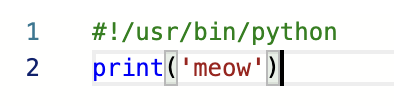
My hello.py file was using this path, which used to be correct:
Now it needs to be this:
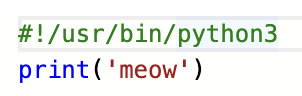
Seriously the easiest fix. And it only took me about half a second.
A few years and half a second 😛
p.s. Thank you to whichever friend of mine at DH quietly gave me back root on my VPS and DreamPress (???) (which I originally lost when I stopped working there). You are my hero!
Not sure if this worked for me because I have root, or if it would work for everyone. But no sudo commands were used in the making of this blog post, so likely the latter.
Do try this at home!